Everything you need to know to get the most out of the app: profiles, lessons, homework, reports, family and settings.
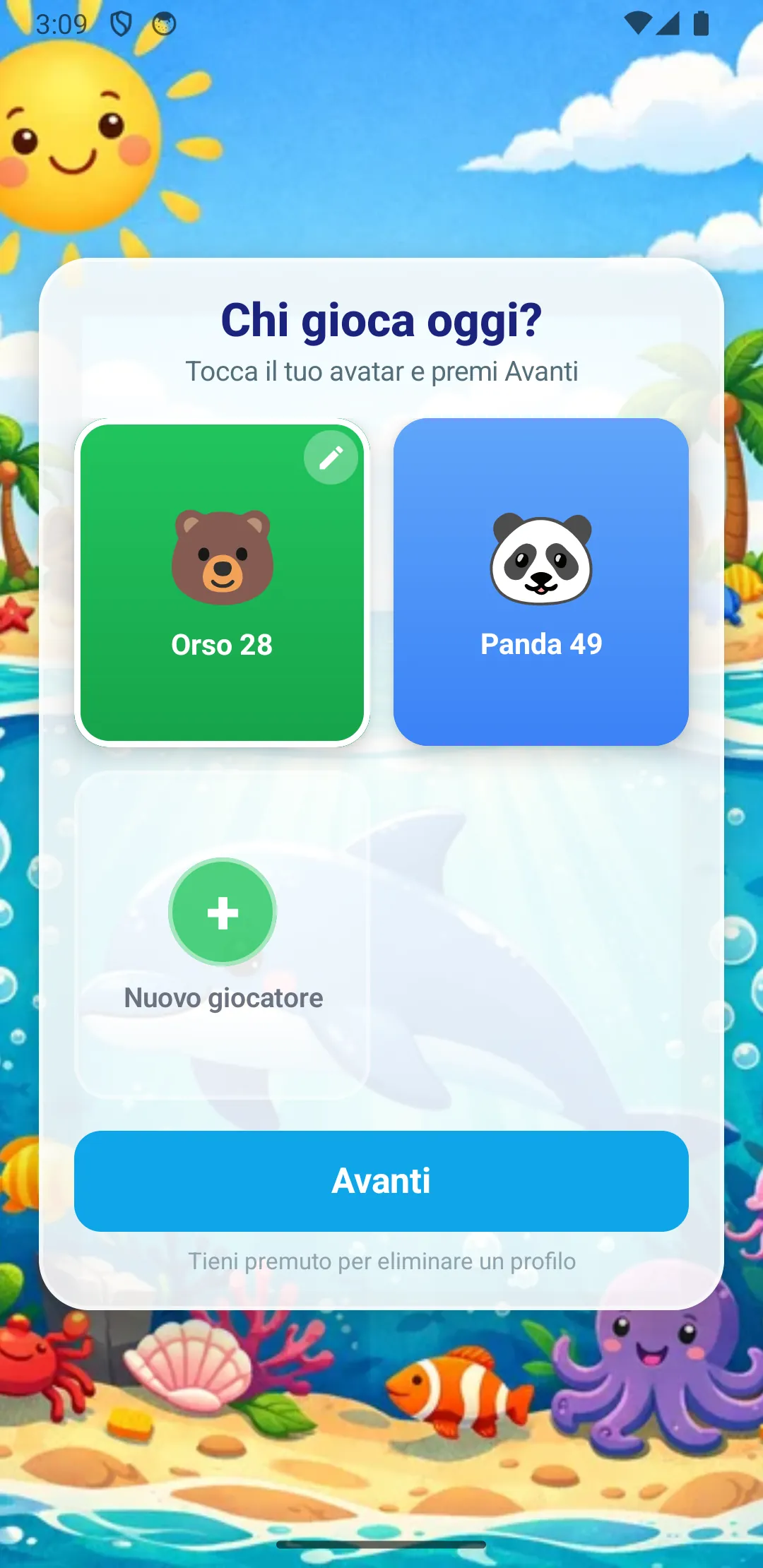
When the app launches, the "Who's playing today?" screen is displayed. MateMatt supports up to 5 profiles on the same device, perfect for families with multiple children or for classrooms.
Separate data: each profile has its own progress, reports and MatCoin. Switching profiles does not affect other players' data.
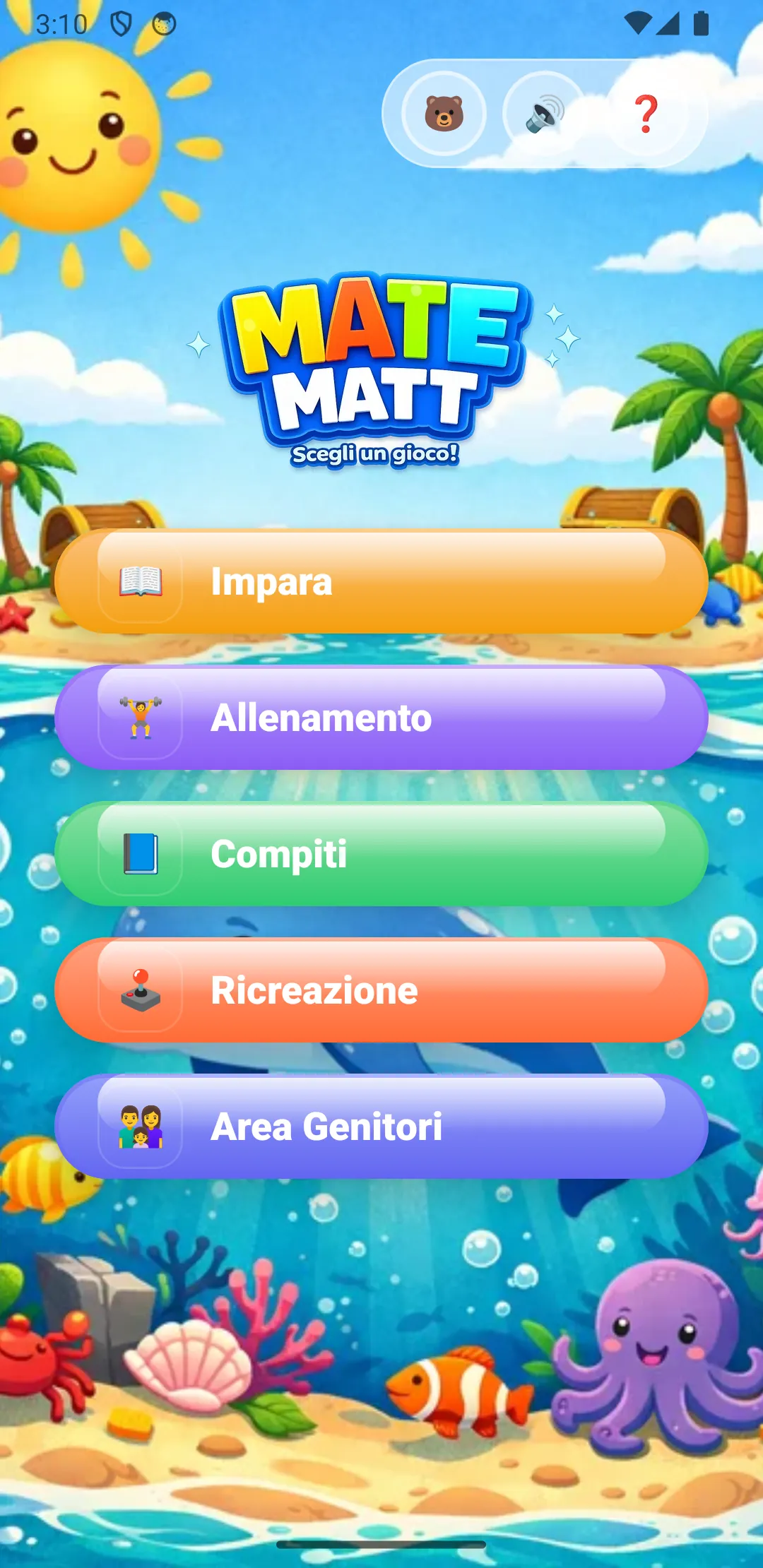
The Home screen shows 5 main sections, each with a different colour:
| Section | What it does |
|---|---|
| Learn | Guided lessons following the school curriculum, with all hints enabled |
| Training | Free practice: choose operation and level, without guidance |
| Homework | Homework assigned by a parent or received via code |
| Recess | Reward mini-games (unlocked with MatCoin) |
| Parents Area | Reports, homework creation, family, settings |
In the top-right corner you will find three icons: switch profile (avatar), audio on/off and help.
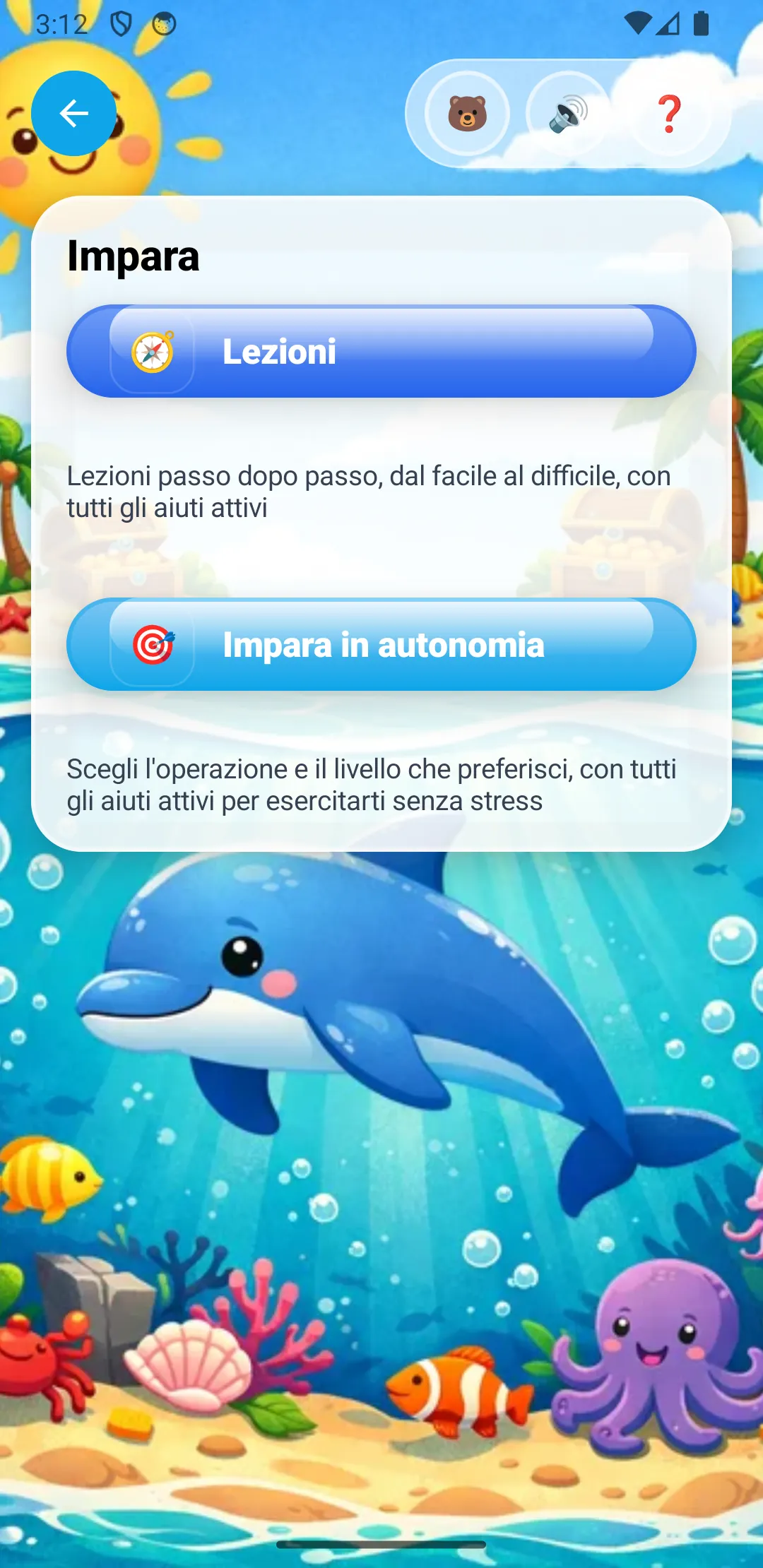
"Learn" offers two modes:
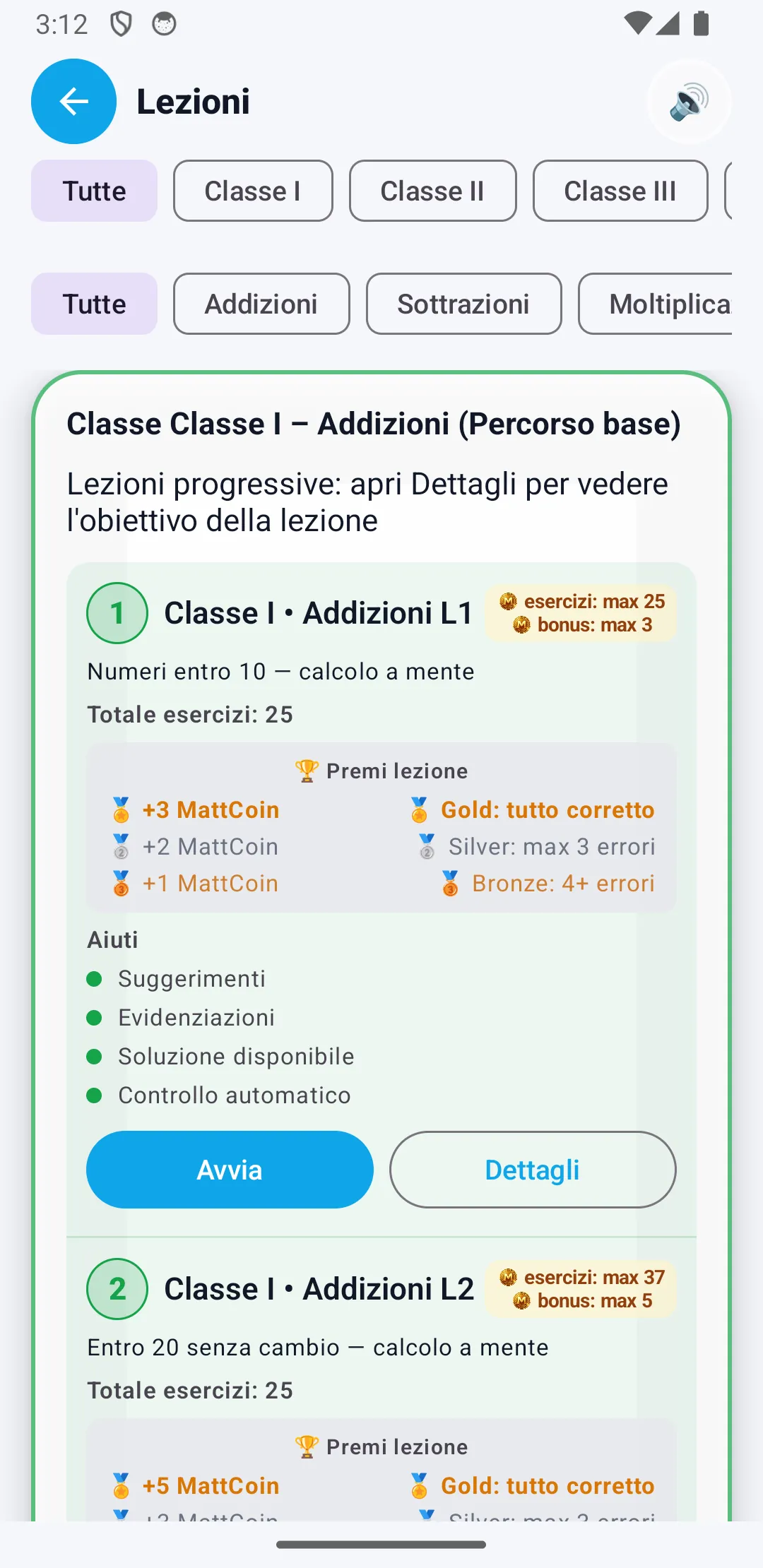
Each lesson in the list shows:
Press Start to begin or Details to read the lesson's learning objective.
| Operation | Description |
|---|---|
| Addition | Column addition, from 1 to 4 digits, with and without carrying |
| Subtraction | Column subtraction, with and without borrowing |
| Multiplication | Column multiplication up to 3x2 digits |
| Division | Step-by-step division with 1 or 2-digit divisors |
| Times tables | 5 modes: classic, fill-in-the-blank, inverse, multiple choice, guided |
Quick filters: at the top of the list you can filter by grade (I, II, III...) and by operation type to quickly find the lesson you need.
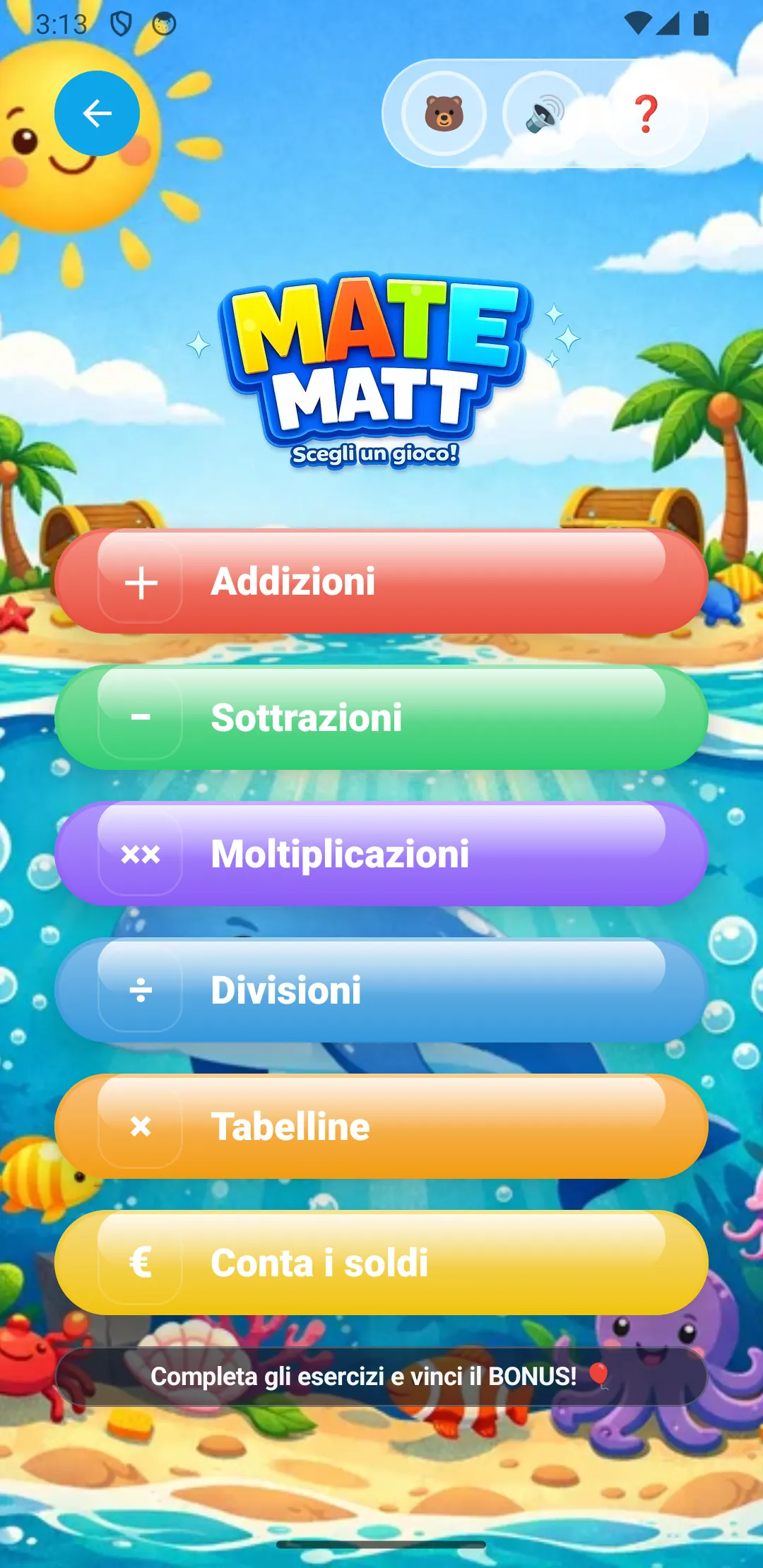
Training is the free practice mode: the child chooses which operation to practise and at what difficulty level.
Unlike "Learn", hints are reduced here: no automatic suggestions, no visible solution. The child tests themselves independently.
Bonus: at the bottom of the screen, "Complete the exercises and win the BONUS!" appears — after a series of correct exercises, the child unlocks a Recess game.
From the Home screen, the child accesses the Homework section to complete homework assigned by a parent.
Homework can arrive in two ways:
When the child opens a homework assignment, the exercises start automatically with the settings chosen by the parent (operation type, difficulty, enabled hints). When finished, the results are saved in the Report.
When the parent creates homework and assigns it through the Family group, notification badges appear on the "Homework archive" button:
| Indicator | Where it appears | Meaning |
|---|---|---|
| Red dot | Child's device (member) | There is new homework to complete, received from the parent through the group. Disappears after opening the homework archive. |
| Blue dot | Parent's device (admin) | Indicates that homework has been sent to the group and is awaiting completion. Disappears when the child completes the homework and submits the report. |
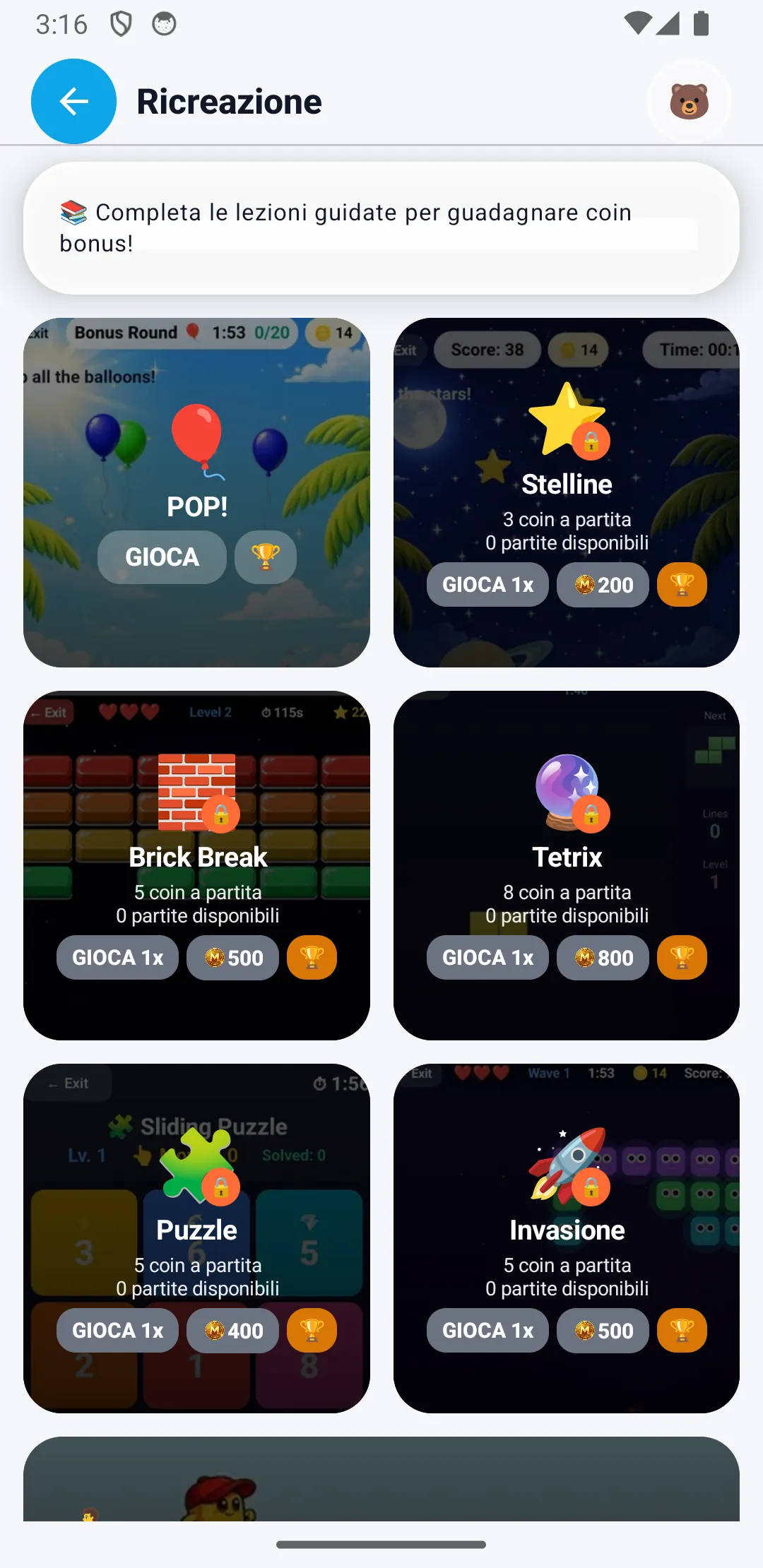
Recess is the reward area: fun mini-games that the child can unlock by spending the MatCoin earned through exercises.
| Game | Cost | Type |
|---|---|---|
| POP! (balloons) | Free | Pop the balloons against the clock |
| Stars | 3 coins/game | Catch the falling stars |
| Brick Break | 5 coins/game | Break the bricks |
| Tetrix | 8 coins/game | Block puzzle |
| Puzzle | 5 coins/game | Sliding puzzle |
| Invasion | 5 coins/game | Defend the base |
Built-in financial education: the MatCoin system teaches the child to manage a "currency": earn through effort, decide whether to spend now or save up for something better.
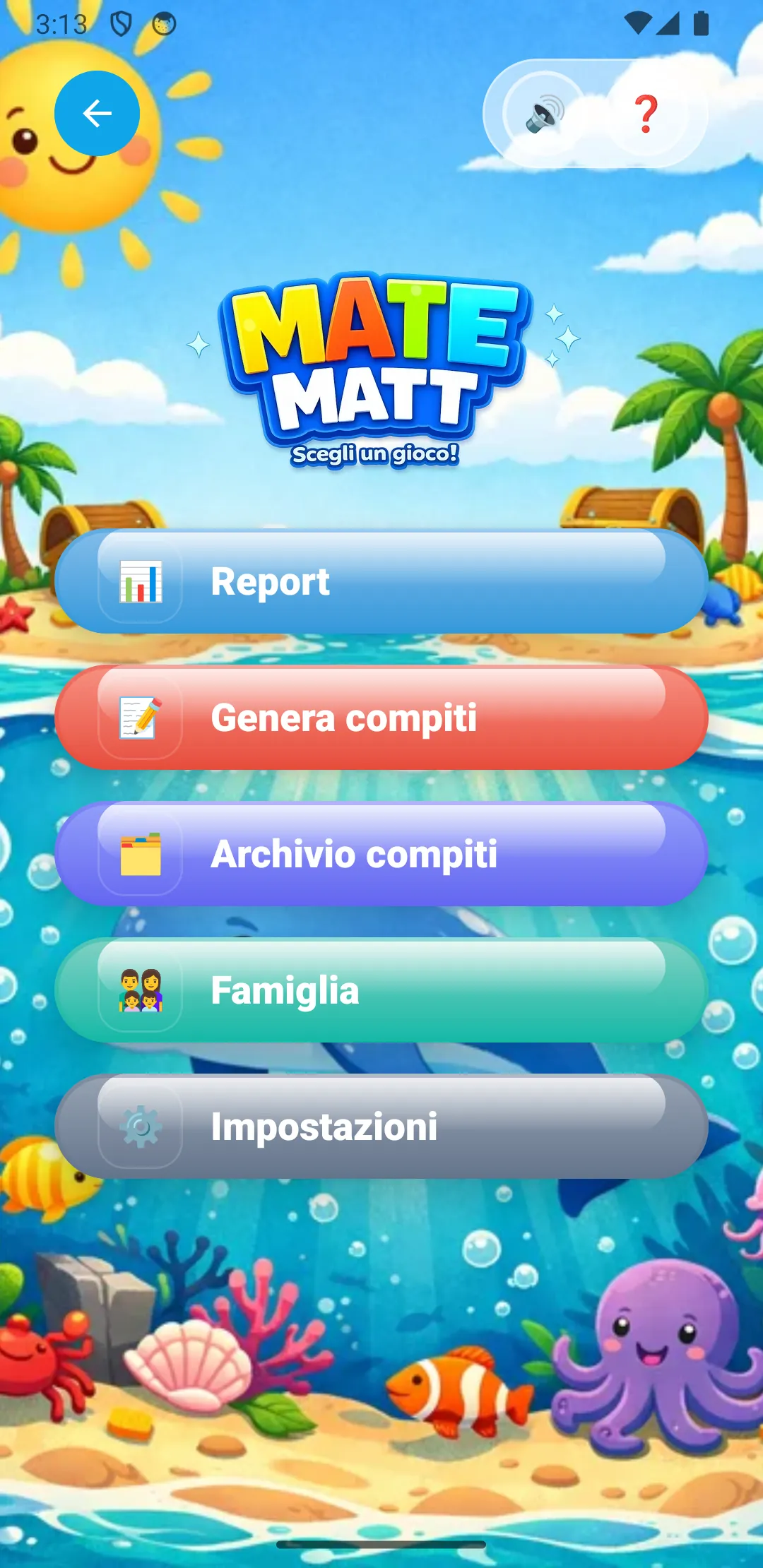
The Parents Area is the control panel for adults. It contains:
Protection: you can protect the Parents Area with a 4-digit PIN to prevent children from accessing it (see section Parental PIN).
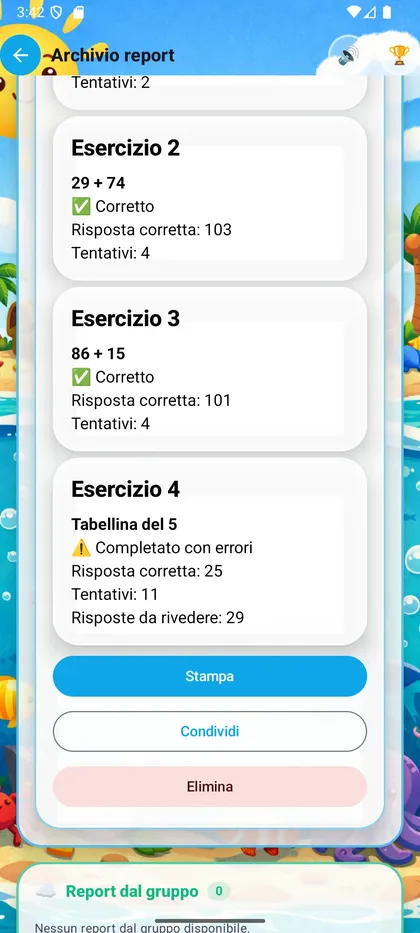
Every time the child completes an exercise session, the results are automatically saved in a report.
Each exercise in the report shows an outcome indicator:
| Indicator | Meaning |
|---|---|
| ✅ Correct | The exercise was completed without errors. |
| ⚠️ Completed with errors | The child completed the exercise but made one or more errors before finding the correct answer. |
| ❌ Needs review | The exercise was not completed (too many errors or abandoned). |
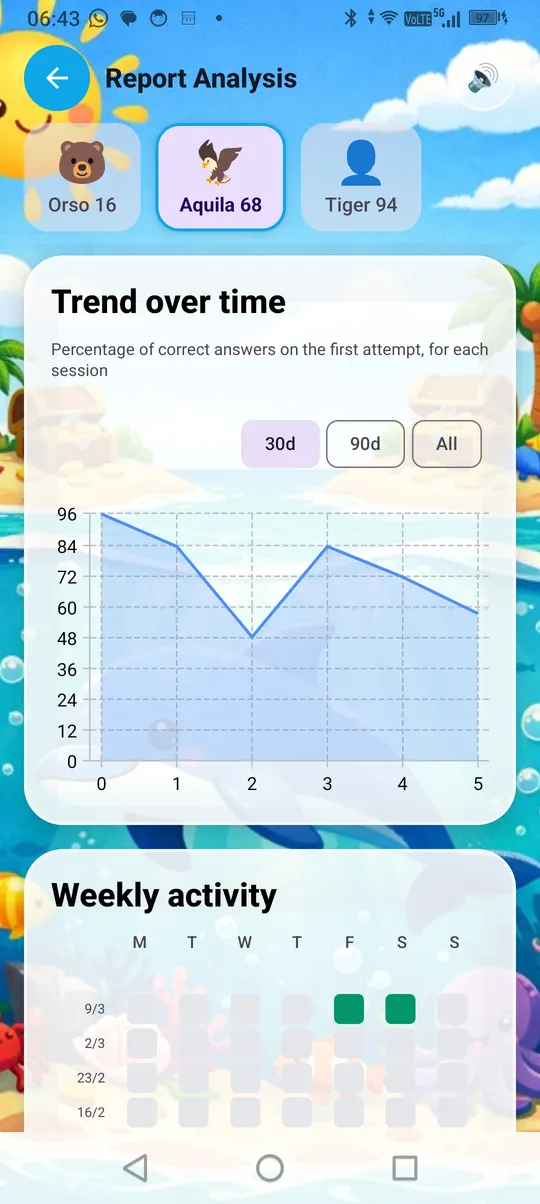
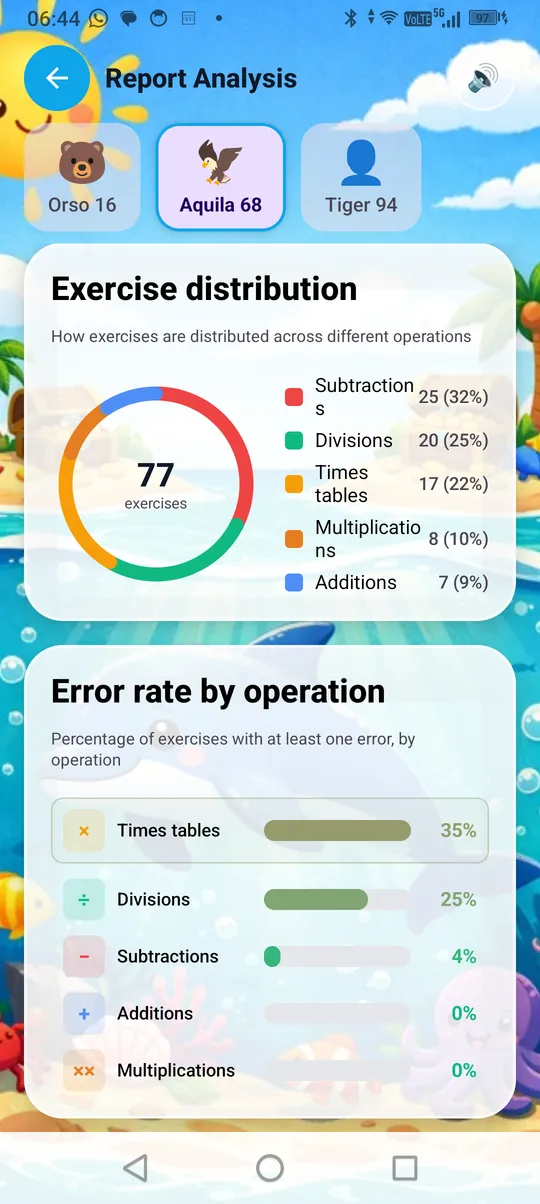
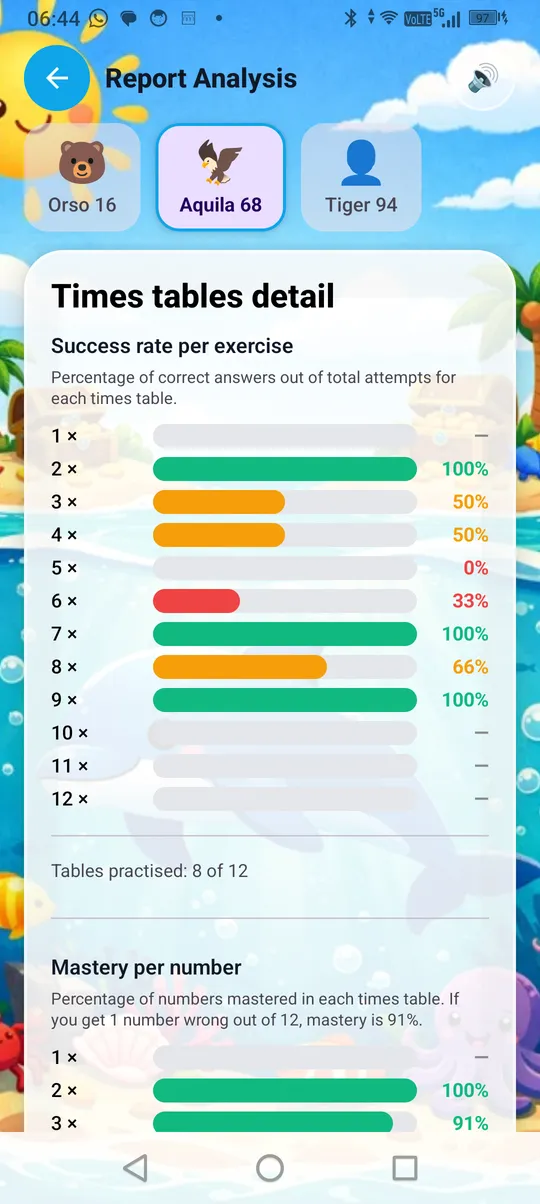
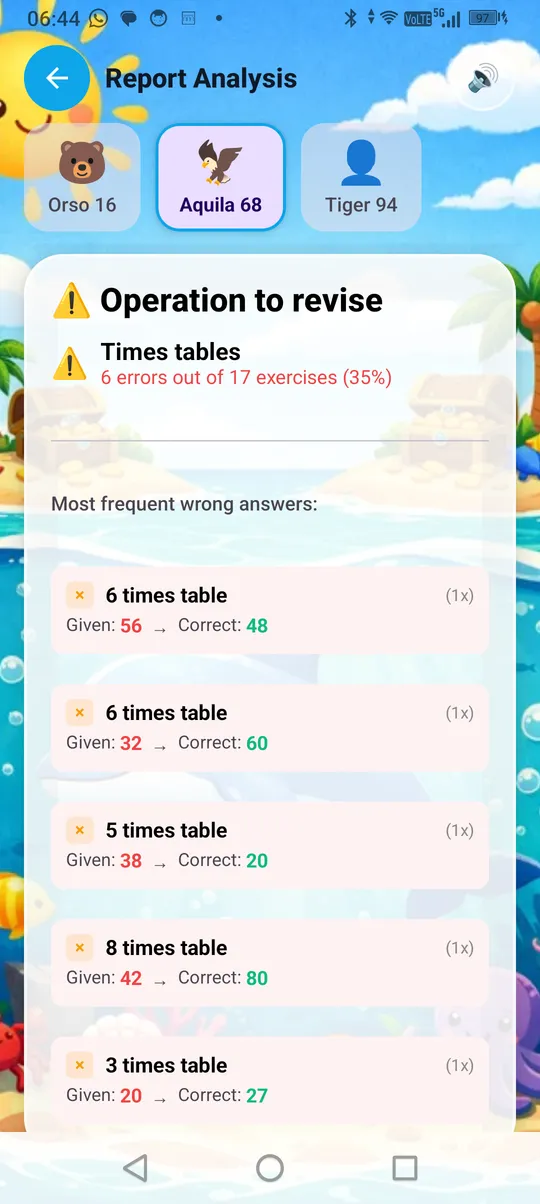
The Report Analysis section provides a complete overview of the child's progress:
Tip: check the reports regularly to identify areas where the child is struggling. Many exercises with ⚠️ or ❌ on subtraction, for example, could indicate difficulty with borrowing.
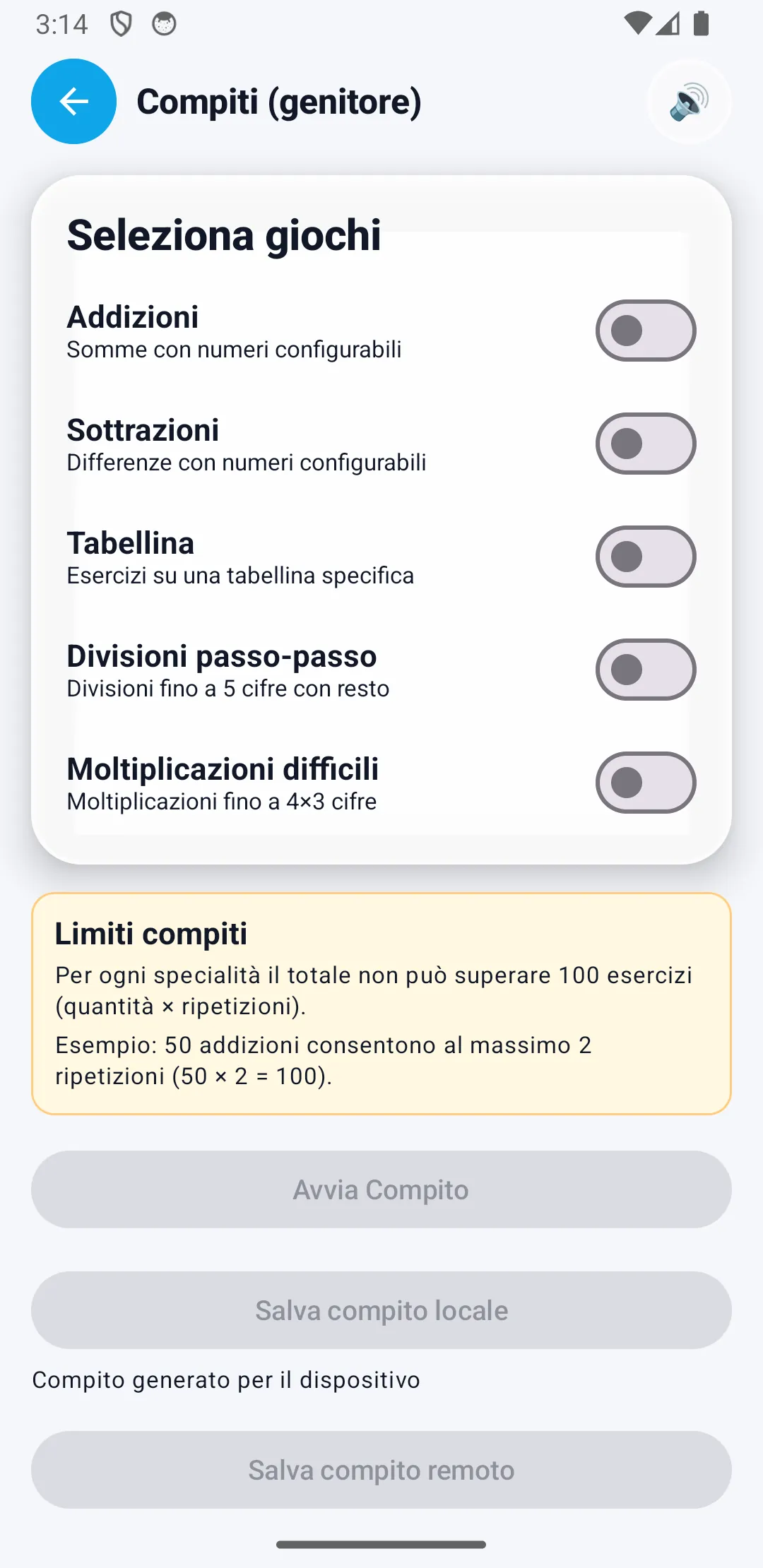
The homework generator lets you create personalised exercises for your child, choosing every detail.
| Type | Configuration |
|---|---|
| Addition | Digits (1-4), decimals (0-2), quantity, repetitions |
| Subtraction | Digits (1-4), decimals (0-2), quantity, repetitions |
| Times tables | Choose which tables (1-10 or 1-12 for UK/US), mode |
| Step-by-step division | Dividend digits (1-5), divisor digits (1-2) |
| Advanced multiplication | Multiplicand digits (2-4) x multiplier digits (1-3) |
Homework limit: for each exercise type, the total (quantity × repetitions) cannot exceed 100 exercises.
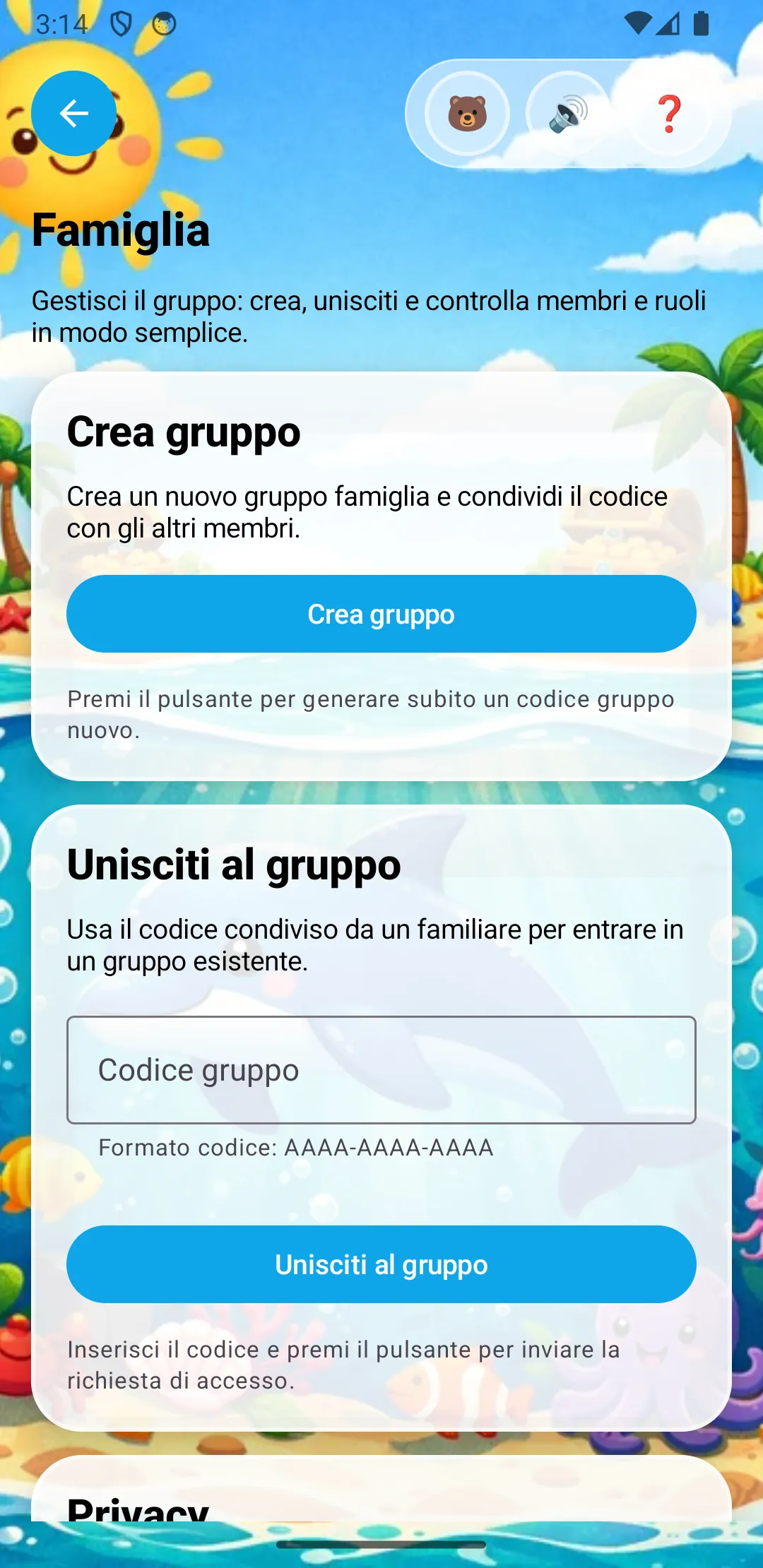
The Family feature connects multiple devices in a family group, allowing the parent (admin) to assign homework and view results from their own phone.
| Role | Can do |
|---|---|
| Admin (parent) | Create homework, view all reports, manage members, close the group |
| Member (child) | Receive and complete homework, view their own results |
When the admin sets a parental PIN, it is automatically propagated to all group members:
Security: all family group data is protected with end-to-end encryption (AES-256). The PIN is encrypted with the group key before syncing. Not even the server can read the contents.
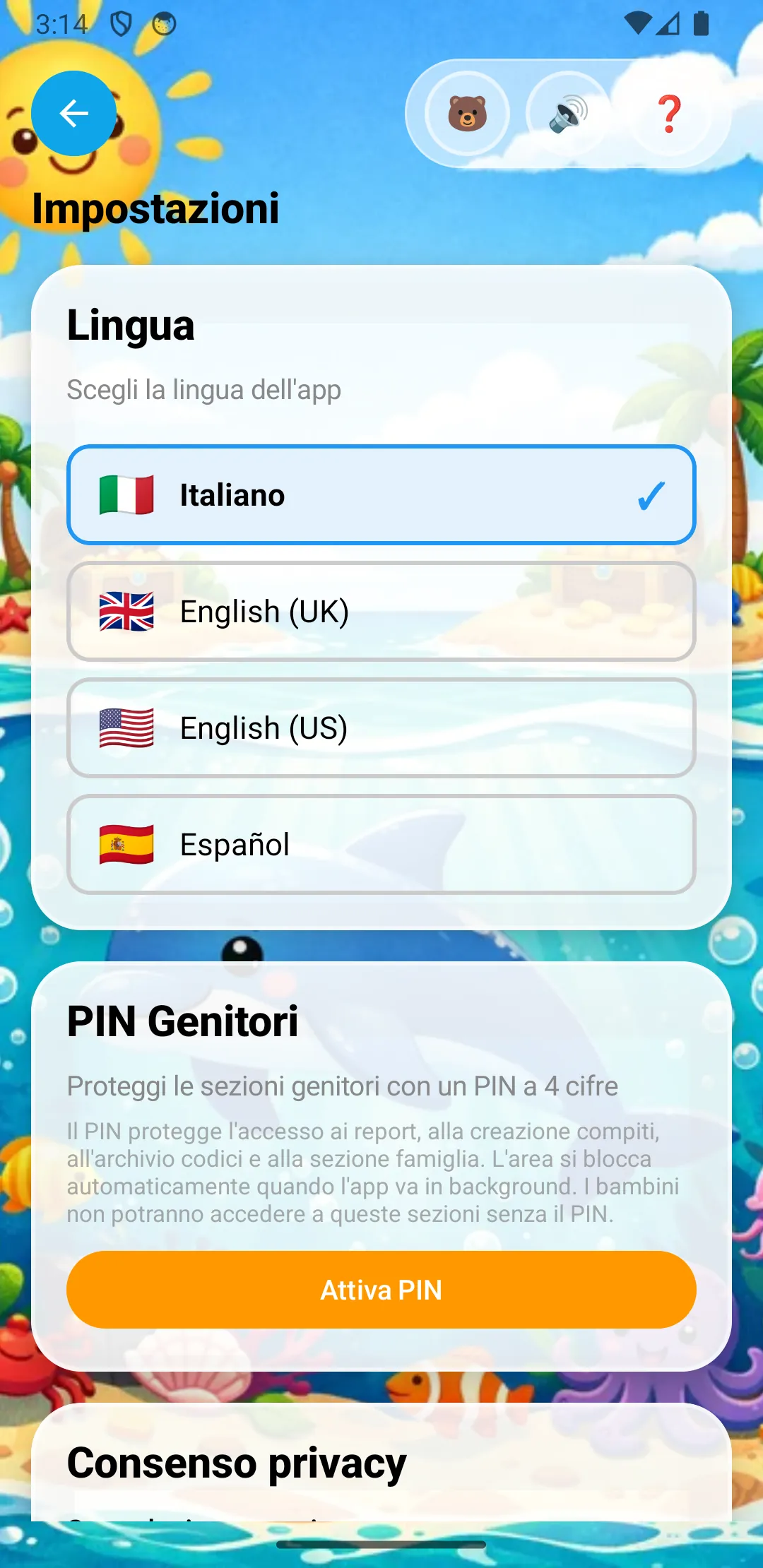
The 4-digit PIN protects sections reserved for adults, preventing children from accessing:
If you are part of a family group, the PIN is managed centrally by the admin (see Family section):
Important: when the app goes to background, the PIN automatically re-activates. Children will not be able to access protected sections even by switching apps and coming back.
MateMatt automatically adapts to the device language, but you can change it manually in Settings. Each language corresponds to a different curriculum:
| Language | Curriculum | Grades | Times tables up to |
|---|---|---|---|
| Italian | Indicazioni Nazionali MIUR | Classe I-V | 10 |
| English (UK) | National Curriculum DfE | Year 2-6 | 12 |
| English (US) | Common Core CCSS | Grade 1-5 | 12 |
| Spanish | LOMLOE RD 157/2022 | Curso 1-6 | 10 |
MateMatt is designed with children's privacy as the top priority:
GDPR and Google Families compliant: MateMatt does not collect personal data and does not display ads. Optional Premium subscriptions are available to support development, always protected by a parental gate before any purchase. It is designed to be safe from the very first launch.